
372 lines
11 KiB
Markdown
372 lines
11 KiB
Markdown
# Frp 内网穿透搭建指南
|
||
|
||
> 本文带你从 **0 到 1** 完成一次内网穿透:
|
||
> 先在公网服务器上搭好 frp 服务端(frps),再用 **[FrpcPilot](https://github.com/SparksFly91/FrpcPilot)** 图形化客户端在本机一键开启穿透,全程无需手写配置文件。
|
||
>
|
||
> 如果你还不会用命令行操作客户端,可以直接跳到「[三、使用 FrpcPilot 开启本地穿透](#三使用-frpcpilot-开启本地穿透推荐)」。
|
||
|
||
## 目录
|
||
|
||
- [一、下载 frp](#一下载-frp)
|
||
- [二、公网服务端搭建(frps)](#二公网服务端搭建frps)
|
||
- [三、使用 FrpcPilot 开启本地穿透(推荐)](#三使用-frpcpilot-开启本地穿透推荐)
|
||
- [四、附:手动配置 frpc 客户端(可选)](#四附手动配置-frpc-客户端可选)
|
||
- [五、常见问题排查](#五常见问题排查)
|
||
|
||
---
|
||
|
||
## 一、下载 frp
|
||
|
||
前往官方发布页下载**与服务器系统 / 架构匹配**的版本:
|
||
|
||
- GitHub 发布页:<https://github.com/fatedier/frp/releases>
|
||
|
||

|
||
|
||
同一个压缩包里同时包含**客户端**与**服务端**:
|
||
|
||
| 文件 | 说明 |
|
||
| --- | --- |
|
||
| `frps` | 服务端程序(部署在**公网服务器**) |
|
||
| `frps.toml` | 服务端配置文件 |
|
||
| `frpc` | 客户端程序(运行在**内网机器**) |
|
||
| `frpc.toml` | 客户端配置文件 |
|
||
|
||
> 💡 使用 FrpcPilot 时,**服务端**仍需手动部署(见第二节),**客户端**则完全由 FrpcPilot 代劳 —— 它会自动下载 frpc、生成 `frpc.toml` 并启动进程。
|
||
|
||
---
|
||
|
||
## 二、公网服务端搭建(frps)
|
||
|
||
### 1. 准备工作
|
||
|
||
- 一台具有**公网 IP** 的服务器:阿里云、腾讯云、百度云、华为云等均可。
|
||
- 在云服务商的**安全组 / 防火墙**中放行以下端口:
|
||
- `7000`:frps 与 frpc 的通信端口(对应 `bindPort`);
|
||
- 你计划映射的**远程端口**(如 `6001`、`6002`…)。
|
||
- 将下载好的 frp 压缩包上传到服务器(推荐使用宝塔面板或 `scp`),解压到固定目录,例如 `/www/server/frp`。
|
||
|
||
### 2. 编写服务端配置 `frps.toml`
|
||
|
||
在 frps 所在目录创建 `frps.toml`:
|
||
|
||
```toml
|
||
bindPort = 7000
|
||
auth.token = "链接凭证,自己设置" # 客户端需与此处保持一致
|
||
```
|
||
|
||
> - `bindPort`:frps 监听端口,需在安全组放行。
|
||
> - `auth.token`:客户端连接令牌,务必记住,FrpcPilot 添加服务器时要填写同一个值。
|
||
|
||
### 3. 注册 systemd 服务(开机自启)
|
||
|
||
创建服务单元文件:
|
||
|
||
```shell
|
||
vim /lib/systemd/system/frps.service
|
||
```
|
||
|
||
写入以下内容(**请将 `ExecStart` 中的路径改成你自己的 frps 实际路径**):
|
||
|
||
```ini
|
||
[Unit]
|
||
Description=frps daemon
|
||
After=network.target
|
||
|
||
[Service]
|
||
Type=simple
|
||
# frps 程序所在位置,根据自己的路径修改
|
||
ExecStart=/www/server/frp/frps -c /www/server/frp/frps.toml
|
||
Restart=always
|
||
RestartSec=1min
|
||
ExecStop=/usr/bin/killall frps
|
||
|
||
[Install]
|
||
WantedBy=multi-user.target
|
||
```
|
||
|
||
> ⚠️ 注意:systemd 的配置项**不支持行内注释**,注释请单独占一行,否则 `#` 之后的内容会被当成命令的一部分。
|
||
|
||
### 4. 加载配置并启动
|
||
|
||
```shell
|
||
# 创建 / 修改 service 文件后,必须先重新加载
|
||
systemctl daemon-reload
|
||
|
||
# 设置开机自启
|
||
systemctl enable frps
|
||
|
||
# 启动服务
|
||
systemctl start frps
|
||
|
||
# 查看运行状态(看到 active (running) 即成功)
|
||
systemctl status frps
|
||
```
|
||
|
||
也可以一条命令完成「开机自启 + 立即启动」:
|
||
|
||
```shell
|
||
systemctl enable --now frps
|
||
```
|
||
|
||
### 5. 常用管理命令
|
||
|
||
| 操作 | 命令 |
|
||
| --- | --- |
|
||
| 启动 | `systemctl start frps` |
|
||
| 停止 | `systemctl stop frps` |
|
||
| 重启 | `systemctl restart frps` |
|
||
| 查看状态 | `systemctl status frps` |
|
||
| 开机自启 / 取消 | `systemctl enable frps` / `systemctl disable frps` |
|
||
| 修改配置后重载 | `systemctl daemon-reload && systemctl restart frps` |
|
||
|
||
### 6. 放行端口(重要)
|
||
|
||
除云服务商的**安全组**外,若服务器开启了系统防火墙,也需放行端口:
|
||
|
||
```shell
|
||
# firewalld(CentOS / RHEL)
|
||
firewall-cmd --permanent --add-port=7000/tcp
|
||
firewall-cmd --permanent --add-port=6001/tcp
|
||
firewall-cmd --reload
|
||
```
|
||
|
||
```shell
|
||
# ufw(Ubuntu / Debian)
|
||
ufw allow 7000/tcp
|
||
ufw allow 6001/tcp
|
||
```
|
||
|
||
到这里,服务端就搭建完成了。接下来用 **FrpcPilot** 在本机开启穿透。
|
||
|
||
---
|
||
|
||
## 三、使用 FrpcPilot 开启本地穿透(推荐)
|
||
|
||
[FrpcPilot](https://github.com/SparksFly91/FrpcPilot) 是一款 frp 图形化客户端,帮你把「下载 frpc → 写 `frpc.toml` → 敲命令启动」的流程,变成界面上的点几下即可完成。
|
||
|
||
### 1. 下载并安装 FrpcPilot
|
||
|
||
前往 [Releases](https://github.com/SparksFly91/FrpcPilot/releases/latest) 下载对应系统的安装包(Windows / macOS / Linux),安装后打开。
|
||
|
||

|
||
|
||
### 2. 下载 frpc 客户端
|
||
|
||

|
||
|
||
1. 打开侧边栏「**Frpc 下载**」页面;
|
||
2. 找到与**本机系统 / 架构**匹配的版本,点击「**下载**」,等待下载并自动解压完成(卡片会显示「已下载」);
|
||
3. 若本机已有 frpc,也可点击「**导入本地**」直接导入。
|
||
|
||
### 3. 添加服务器(对应 frps)
|
||
|
||

|
||
|
||
进入「**服务器**」页面,点击右上角「**新增服务器**」,按服务端配置填写:
|
||
|
||
| 字段 | 填写内容 | 示例 |
|
||
| --- | --- | --- |
|
||
| 名称 | 自定义,仅用于展示 | 我的公网服务器 |
|
||
| 服务器地址 | frps 所在公网 **IP 或域名** | `frp.example.com` |
|
||
| 端口 | frps 的 `bindPort` | `7000` |
|
||
| 鉴权 Token | 与 `frps.toml` 中的 `auth.token` **完全一致** | `链接凭证` |
|
||
| 传输协议 | 默认 `TCP` 即可 | `TCP` |
|
||
| 启用 TLS | 按需,默认关闭 | 关闭 |
|
||
|
||
保存后,打开该服务器的「**启用**」开关。
|
||
> 📌 同一时间**只能启用一台**服务器。
|
||
|
||
### 4. 添加隧道(要穿透的本地服务)
|
||
|
||

|
||
|
||
进入「**隧道列表**」页面,点击右上角「**新增隧道**」,以本地 MySQL 为例:
|
||
|
||
| 字段 | 填写内容 | 示例 |
|
||
| --- | --- | --- |
|
||
| 名称 | 自定义隧道名 | `mysql` |
|
||
| 代理类型 | 按服务类型选择 | `TCP` |
|
||
| 本地 IP | 本地服务地址 | `127.0.0.1` |
|
||
| 本地端口 | 本地服务端口 | `3306` |
|
||
| 远程端口 | 通过公网访问的端口(需在安全组放行) | `6001` |
|
||
|
||
保存后打开「**启用**」开关。
|
||
> - 可同时启用**多个**隧道(如再加一条 `ssh`:本地 `22` → 远程 `6002`)。
|
||
> - `HTTP / HTTPS` 类型支持自定义域名、子域名、URL 前缀;`STCP / XTCP / SUDP` 类型需填写密钥。
|
||
|
||
### 5. 一键启动
|
||
|
||

|
||
|
||
回到「**仪表盘**」:
|
||
|
||
1. 在「Frpc 版本」下拉框中选择刚下载的版本;
|
||
2. 点击「**一键启动**」;
|
||
3. 下方「**实时日志**」出现 `login to server success`,即表示已成功连上服务端,隧道开始工作。
|
||
|
||
> FrpcPilot 会根据「已启用的服务器 + 已启用的隧道」**自动生成 `frpc.toml`** 并拉起独立进程;
|
||
> 关闭软件(或点击「停止」)时会自动结束 frpc 进程,不会留下后台残留。
|
||
|
||
### 6. 验证穿透是否生效
|
||
|
||
在外网通过 **`公网IP:远程端口`** 访问即可到达本地服务:
|
||
|
||
```text
|
||
mysql → frp.example.com:6001 → 127.0.0.1:3306
|
||
ssh → frp.example.com:6002 → 127.0.0.1:22
|
||
```
|
||
|
||
### 7. 界面字段与 frpc.toml 对照
|
||
|
||
FrpcPilot 的所有设置最终都会被转换成标准的 frpc 配置,方便你理解与排障:
|
||
|
||
| FrpcPilot | frpc.toml |
|
||
| --- | --- |
|
||
| 服务器地址 | `serverAddr` |
|
||
| 端口 | `serverPort` |
|
||
| 鉴权 Token | `auth.token` |
|
||
| 传输协议 | `transport.protocol` |
|
||
| 启用 TLS | `transport.tls.enable` |
|
||
| 隧道 · 名称 | `proxies.name` |
|
||
| 隧道 · 代理类型 | `proxies.type` |
|
||
| 隧道 · 本地 IP / 端口 | `proxies.localIP` / `proxies.localPort` |
|
||
| 隧道 · 远程端口 | `proxies.remotePort` |
|
||
| 隧道 · 自定义域名 / 子域名 / URL 前缀 | `proxies.customDomains` / `proxies.subdomain` / `proxies.locations` |
|
||
|
||
---
|
||
|
||
## 四、附:手动配置 frpc 客户端(可选)
|
||
|
||
如果你不使用 FrpcPilot,也可以手动运行 frpc。
|
||
|
||
### Windows
|
||
|
||
`frpc.toml` 示例:
|
||
|
||
```toml
|
||
serverAddr = "frps服务端所在公网ip"
|
||
serverPort = 7000 # 服务端占用的端口号
|
||
|
||
[[proxies]]
|
||
name = "mysql" # 隧道名称
|
||
type = "tcp" # 隧道类型
|
||
localIP = "127.0.0.1" # 本地 ip
|
||
localPort = 3306 # 本地端口
|
||
remotePort = 6001 # 远程端口
|
||
|
||
[[proxies]]
|
||
name = "Redis"
|
||
type = "tcp"
|
||
localIP = "127.0.0.1"
|
||
localPort = 6379
|
||
remotePort = 6002
|
||
```
|
||
|
||
启动客户端:
|
||
|
||
```shell
|
||
frpc.exe -c frpc.toml
|
||
```
|
||
|
||
也可在 `frpc.exe` 所在目录新建 `start.bat`,双击即可启动:
|
||
|
||
```bat
|
||
frpc.exe -c frpc.toml
|
||
```
|
||
|
||
### Linux(CentOS)
|
||
|
||
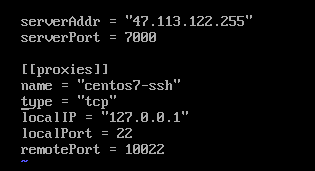
在 `/opt/frp` 目录放置 `frpc` 与 `frpc.toml`(linux-amd64 版本),配置示例(穿透本机 SSH):
|
||
|
||
```toml
|
||
serverAddr = "frps服务端所在公网ip"
|
||
serverPort = 7000
|
||
|
||
[[proxies]]
|
||
name = "centos7-ssh"
|
||
type = "tcp"
|
||
localIP = "127.0.0.1"
|
||
localPort = 22
|
||
remotePort = 10022
|
||
```
|
||
|
||
|
||
|
||
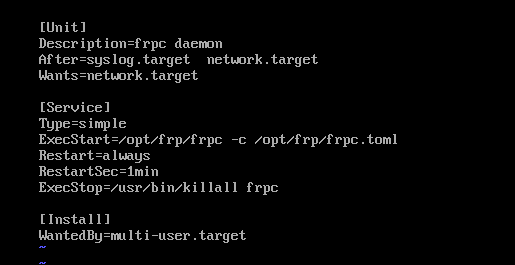
注册为 systemd 服务,实现后台常驻与开机自启:
|
||
|
||
```shell
|
||
vim /lib/systemd/system/frpc.service
|
||
```
|
||
|
||
```ini
|
||
[Unit]
|
||
Description=frpc daemon
|
||
After=network.target
|
||
|
||
[Service]
|
||
Type=simple
|
||
# frpc 程序所在位置,根据自己的路径修改
|
||
ExecStart=/opt/frp/frpc -c /opt/frp/frpc.toml
|
||
Restart=always
|
||
RestartSec=1min
|
||
ExecStop=/usr/bin/killall frpc
|
||
|
||
[Install]
|
||
WantedBy=multi-user.target
|
||
```
|
||
|
||
```shell
|
||
systemctl daemon-reload
|
||
systemctl enable --now frpc
|
||
systemctl status frpc
|
||
```
|
||
|
||
|
||
|
||
---
|
||
|
||
## 五、常见问题排查
|
||
|
||
### 连接成功但隧道启动失败:`start error: port unavailable`
|
||
|
||
```text
|
||
[client/control.go] [mysql] start error: port unavailable
|
||
```
|
||
|
||
含义:已连接到公网 frps,但**远程端口被占用**(示例中映射的是 `6001`,被其他程序占用)。
|
||
解决:换一个未被占用的**远程端口**,或在服务端释放该端口。
|
||
|
||
### 本地服务连接失败:`connect to local service ... refused`
|
||
|
||
```text
|
||
[proxy/proxy.go] [mysql] connect to local service [127.0.0.1:3306] error: ... target machine actively refused it.
|
||
```
|
||
|
||
含义:**本地服务没有启动**(或端口 / IP 写错)。
|
||
解决:确认本地服务已在 `localIP:localPort` 上正常运行。
|
||
|
||
### 查看端口占用 / 终止进程
|
||
|
||
```shell
|
||
# Linux / macOS:查看占用
|
||
lsof -i :6001
|
||
|
||
# 终止进程
|
||
kill <pid>
|
||
```
|
||
|
||
```bat
|
||
:: Windows:查看占用
|
||
netstat -ano | findstr 6001
|
||
|
||
:: 终止进程
|
||
taskkill /PID <pid> /F
|
||
```
|
||
|
||
### 完全连不上服务端
|
||
|
||
- 检查云服务商**安全组**与系统**防火墙**是否放行 `bindPort`(默认 `7000`);
|
||
- 检查「鉴权 Token」是否与 `frps.toml` 中的 `auth.token` 完全一致;
|
||
- 在服务器上确认 frps 正在运行:`systemctl status frps`。
|